Wordflow Temporal Course · Lessons
13 · Versioning
Goal: announce every new game in the feed, without breaking the games that are already running.
Concepts
Patching. Wrap the change in a version check. The first time new code reaches the check, it records a marker in the history and takes the new path. When code replays a history that has no marker, the check returns the default version and the code takes the old path. Old and new Workflows run on the same Worker, each following the code it started with.
Retiring a patch. Once no running Workflow can still take the old path, delete the old branch. Keep the check, with the default version as its minimum, until no running Workflow has the old marker either. Then delete the check too.
Rolling back. After the new code has run, histories contain the marker. The old code doesn’t expect it, so rolling back breaks those Workflows. Replay-test new histories against the old code before you rely on being able to roll back.
Worker Versioning. The other approach. Each Worker deployment has a version, and each Workflow is pinned to the version it started on. Old and new Workers run side by side until the old Workflows finish. There are no version checks in the code, but you run more than one Worker deployment at a time. It’s the better fit for frequent changes to short Workflows. Patching suits occasional changes to long ones. See Worker Versioning.
What you’ll build
- Wrap the
announcecall from Lesson 12 in a version check calledannounce-game. Version 1 announces. The default version doesn’t.
Build it
1. Save an old history
With your Lesson 12 code running, start a game as alice and leave it running:
make history ID=game-alice-3 # use your game's ID2. Patch the Workflow
In GameWorkflow, after NewState:
	state = game.NewState(gameID, input.PlayerID, puzzle, now)
	// Games started before this change have no "announce-game" marker in their
	// history, so GetVersion returns DefaultVersion and they skip the Activity.
	if workflow.GetVersion(ctx, "announce-game", workflow.DefaultVersion, 1) == 1 {
		announce(ctx, startedMessage(state))
	}
	state.SetDeadline(now.Add(puzzle.TimeLimit()))
GetVersion(ctx, changeID, minSupported, maxSupported):
- On first execution, it records a marker with
maxSupported(1) and returns 1. - On replay with the marker, it returns the recorded version.
- On replay without the marker, it returns
DefaultVersion(-1). - If the history holds a version outside
[minSupported, maxSupported], the Workflow Task fails. That protects you from deploying code that has dropped support for a version still in use.
3. Check before deploying
make replayEvery history passes, including the one from step 1.
4. Deploy
Restart the Worker and follow the checklist in the README. To check rollback:
make history ID=game-bob-1
make replay S=12
S=12 runs solutions/12/cmd/replay, the Lesson 12 code, against every saved history. Bob’s game fails.
5. Later: retire the old path
When every game that started before the patch has finished:
	workflow.GetVersion(ctx, "announce-game", 1, 1)
	announce(ctx, startedMessage(state))
Once every Workflow recorded with the marker has finished too, you can delete the GetVersion line.
Compare with solutions/13.
Check it
Start with your Lesson 12 code, without the announce call, running.
-
Start a game as
aliceand leave it running. Save its history withmake history. -
Add the versioned
announcecall.make replayprintsokfor every history, old games included. -
Restart the Worker. The old game keeps working: guesses, hints, and the clock.
-
Join as
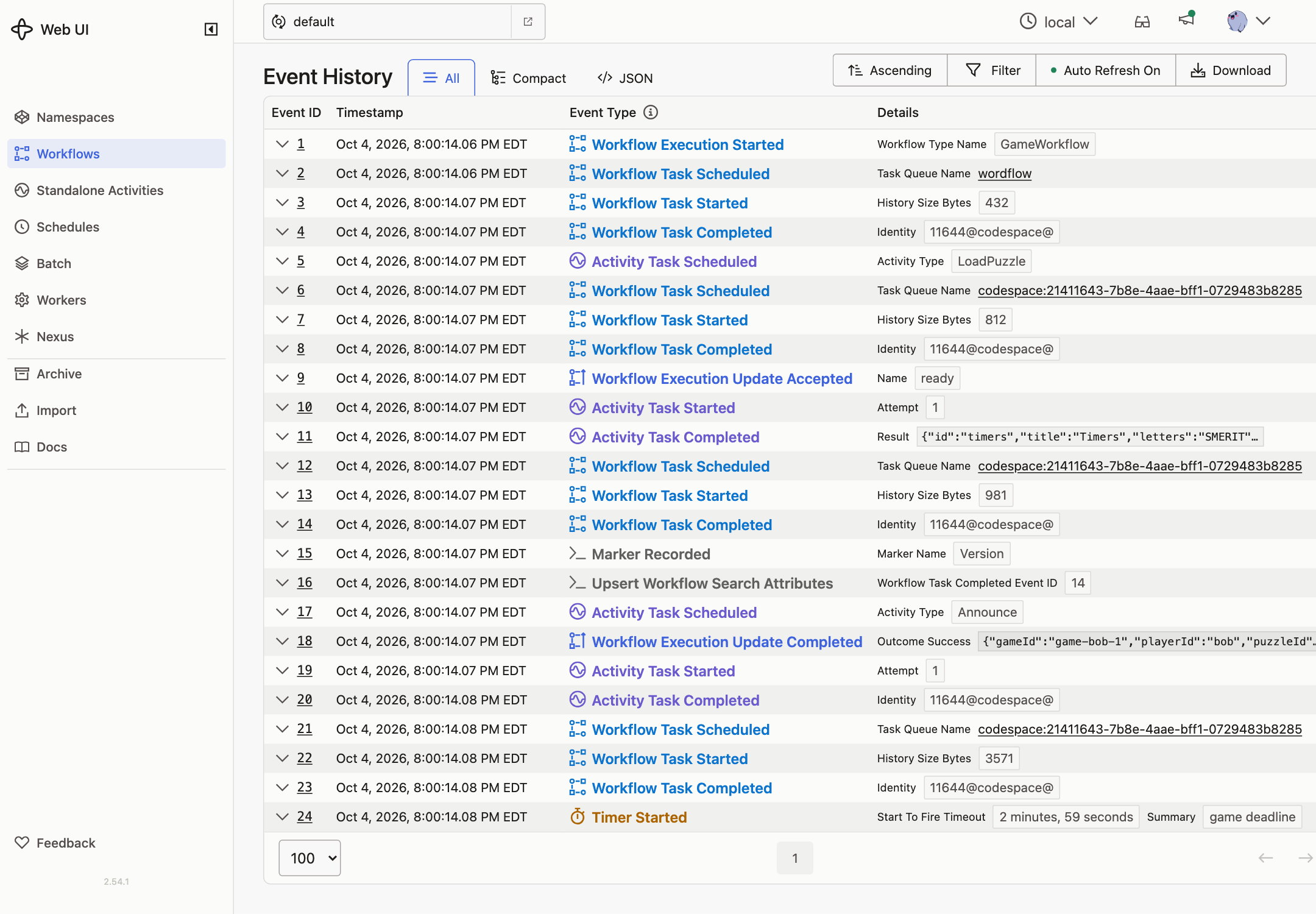
boband start a game. The feed shows bob started …. His game’s history has aMarkerRecordedevent, then theAnnounceActivity.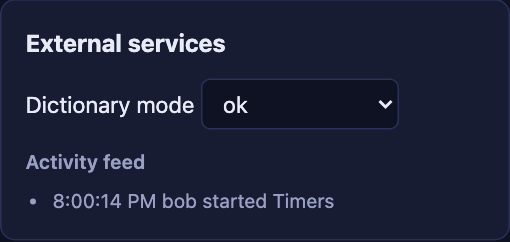
-
Save Bob’s game with
make history, then runmake replay S=12. Bob’s game fails on the Lesson 12 code. That’s why you can’t simply roll back.